
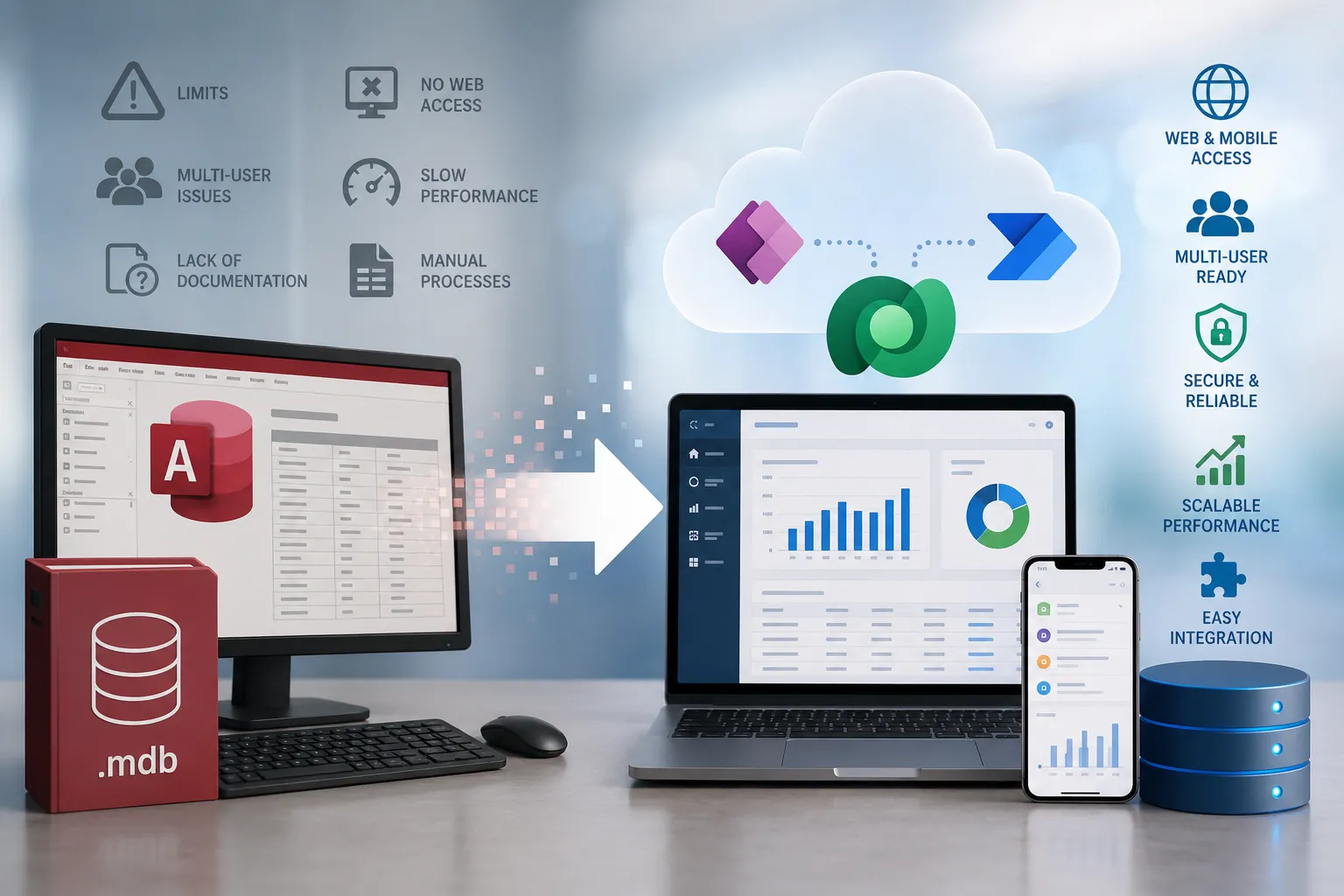
If you are looking for a Microsoft Access replacement, the right answer depends on what your database actually does and how complex it has become. This guide includes the signs that an Access database replacement is overdue, explains what the alternatives look like, and covers a practical six-step process for planning and running the migration without losing data or disrupting the business.
One question worth addressing upfront: Microsoft has not discontinued Access and has no announced plans to do so. Still, Microsoft itself now directs users with more complex needs towards Power Apps and Dataverse, its modern low-code platform. That direction of travel is worth understanding when you are deciding what to replace Access with.
Signs Your Access Database Needs Replacing
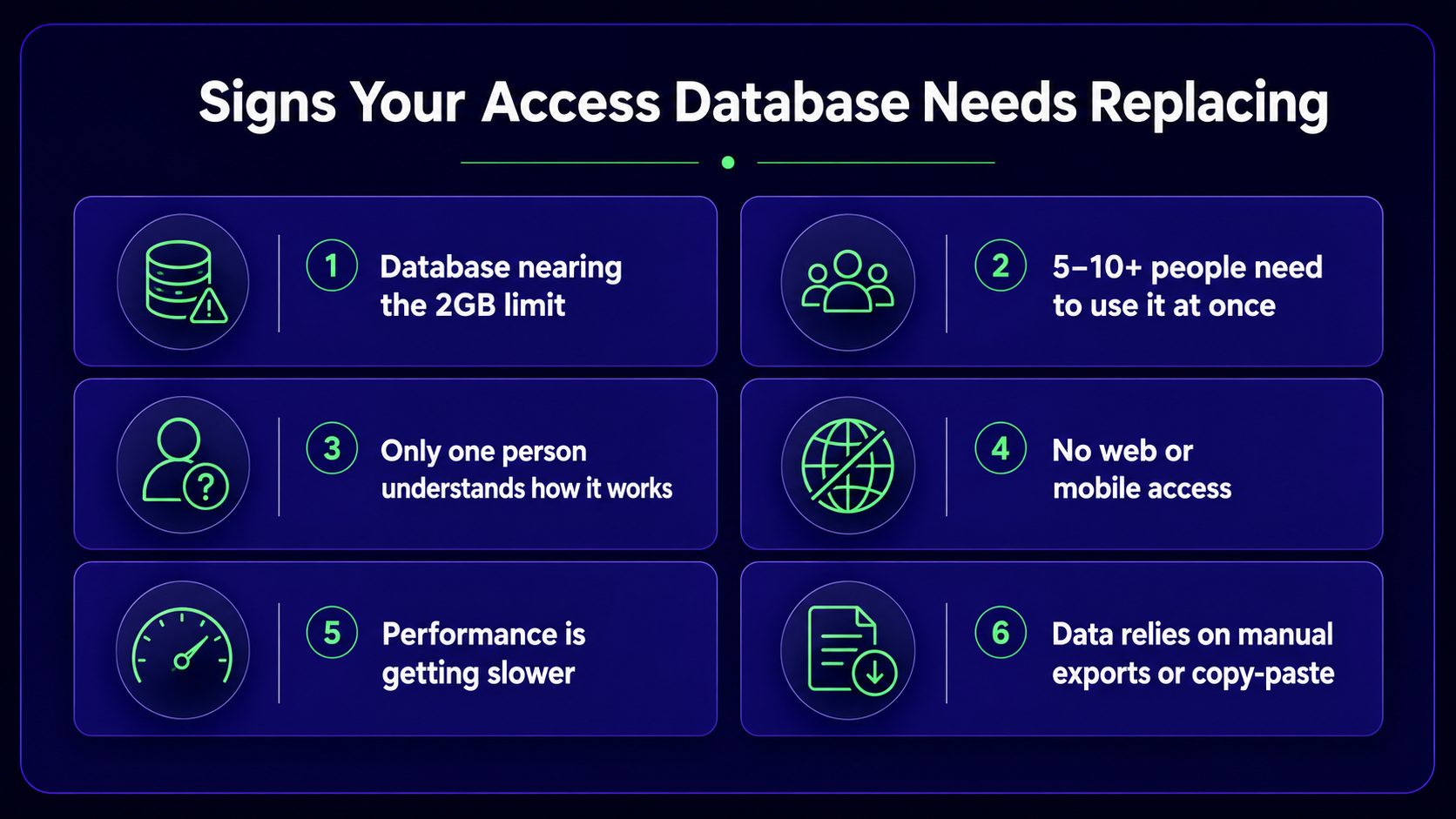
Access has well-documented technical limits. According to Microsoft's own Access specifications, the maximum database file size is 2GB, and the system supports up to 255 concurrent users, though in practice performance degrades well before that ceiling. When a company reaches these thresholds, the system becomes a limitation rather than a tool.
The file is approaching or has exceeded 2GB. Databases that regularly hit that ceiling start throwing errors, slowing down, and becoming prone to corruption. If you are managing the file size manually — archiving old records, splitting the database, and running regular compacts — you are spending effort on infrastructure that a modern system would handle automatically.
More than five to ten people need to use it simultaneously. Beyond roughly five to ten concurrent users in practice, you start seeing record-locking conflicts, slow performance, and occasional corruption. A logistics company running shift operations with fifteen staff trying to update the same order database will recognise this pattern.
Only one person understands how it works. If the forms, queries, and VBA code were built by one person and never documented, the business has a single point of failure. When that person leaves, the system becomes unmaintainable. This is one of the clearest signals that an Access database upgrade is overdue, and one that the UK Government's Legacy IT Risk Assessment Framework identifies as a primary risk factor for any legacy system. Our own IT risk assessment for SMBs walks through how to score this kind of exposure before you commit to a replacement.
There is no web or mobile access. Access is a desktop application. It requires Windows, it requires the file to be on a shared drive or server, and it does not have a browser-based or mobile interface without significant custom development. If your staff work remotely or need data on the move, Access cannot support that without workarounds.
Performance has degraded over time. Queries that used to run in seconds now take minutes. Reports that worked fine with 10,000 records are slow with 100,000. This is a natural consequence of Access's architecture, not a sign that something has broken. Still, it is a real operational problem when it arrives.
Integration with other systems relies on copy-paste or manual export. If your staff regularly export data from Access to Excel, then re-enter it into your accounting software, your CRM, or your logistics platform, you are paying a hidden daily cost in manual work and the errors that come with it.
Access is a classic example of a legacy system: not broken, but no longer fit for the role the business needs it to play. If you have reached that point, it is time to replace your Access database or migrate it to a platform that can support what the business needs next.
What Can Replace Microsoft Access?
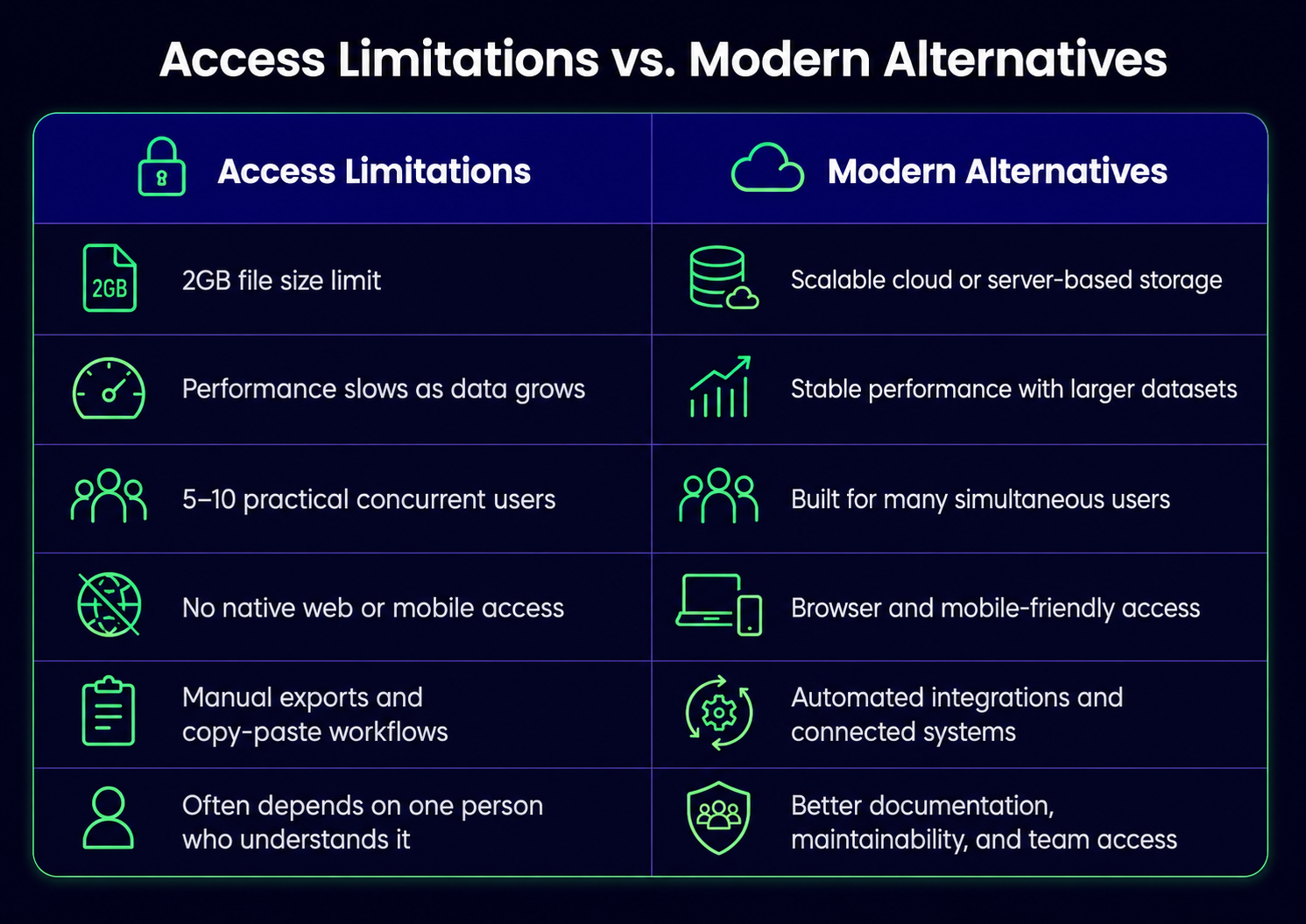
There is no single answer to that question, because the right replacement depends on what the database actually does and how complex it has become. The categories below cover the main paths, with honest notes on when each one fits.
SQL Server or PostgreSQL with a rebuilt front end. For Access databases with significant data volumes, complex queries, or multi-user requirements, migrating the data to a proper relational database is often the right foundation. SQL Server is the natural choice for businesses already in the Microsoft ecosystem. The front end — the forms and reports your staff use — then needs to be rebuilt as a web application or replaced with a suitable tool. This path handles the Access to SQL Server migration that many SMBs eventually need, and scales well.
Power Apps and Dataverse. This is Microsoft's own answer to the question. Microsoft now provides a built-in migration tool that moves Access tables, relationships, and data directly into Dataverse, Microsoft's cloud database. Power Apps then replaces the forms and interface and integrates natively with Microsoft 365, which many UK SMBs already use. This tool suits businesses with relatively straightforward data needs and existing Microsoft infrastructure, and is less suited to complex business logic or heavy custom reporting.
A purpose-built web application. For Access databases that have grown into genuine business-critical systems for managing orders, tracking inventory, or running client records, converting the Access database to a web application is often the most comprehensive solution. It addresses the interface, data, integrations, and access model in a single project. It is the highest-investment option, but also the one that most completely solves the underlying problems.
SaaS platforms. For simpler use cases, such as contact management, basic project tracking, and small inventories, no-code platforms can replace Access at relatively low cost and with minimal migration complexity. These suit straightforward databases but have their own limitations at scale and may not suit businesses with complex reporting or compliance needs.
The 6-Step Access Replacement Process
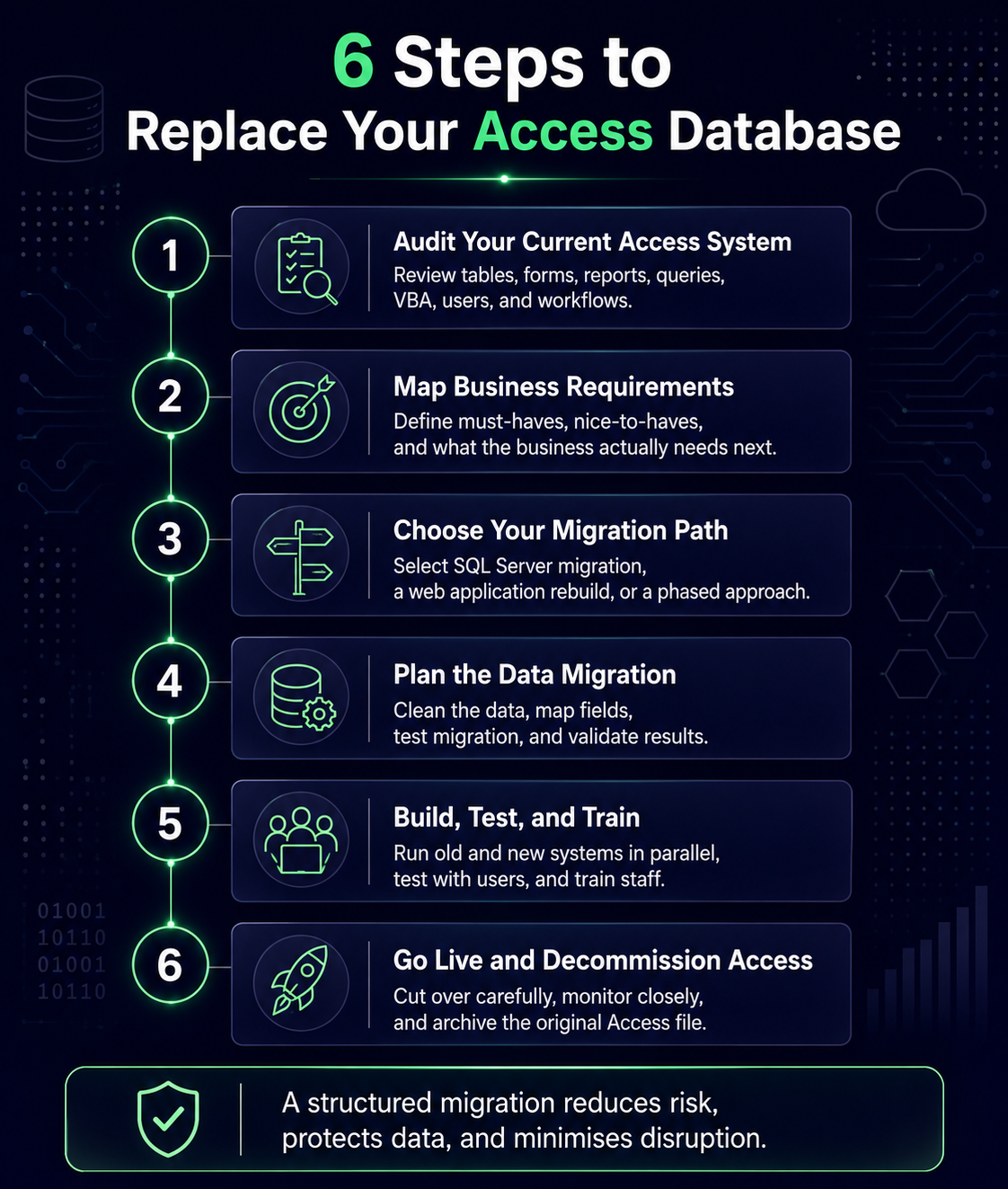
Step 1: Audit Your Current Access System
Before anything else, you need to understand what you actually have. This is the step most migration projects skip, though this is where most problems later originate.
Document every table, the relationships between them, every form, every report, every query, and every piece of VBA code. Note who uses what, how often, and what they use it for. Identify any integrations, however informal, including the Excel exports and manual re-entries that have become part of the daily routine.
The output should be a document that describes what the system does in business terms, not technical ones. Not "tblCustomers has a one-to-many relationship with tblOrders" but "the system tracks customer accounts, records each order against a customer, and generates a weekly dispatch report for the warehouse team." This document is the foundation for everything that follows.
Step 2: Map Business Requirements
A replacement is not a copy. The goal is not to recreate Access in a different technology; it is to solve the problems that Access can no longer help with, while preserving everything the business depends on.
Work with the people who use the system daily to identify what the new system must do, what would be useful but is not essential, and what the current system does that nobody actually needs any more. Separate must-have from nice-to-have. A bespoke database that a manufacturing company built in Access to track components and production runs may need something very different from a professional services firm using Access to manage client billing. Requirements should reflect your business.
Step 3: Choose Your Migration Path
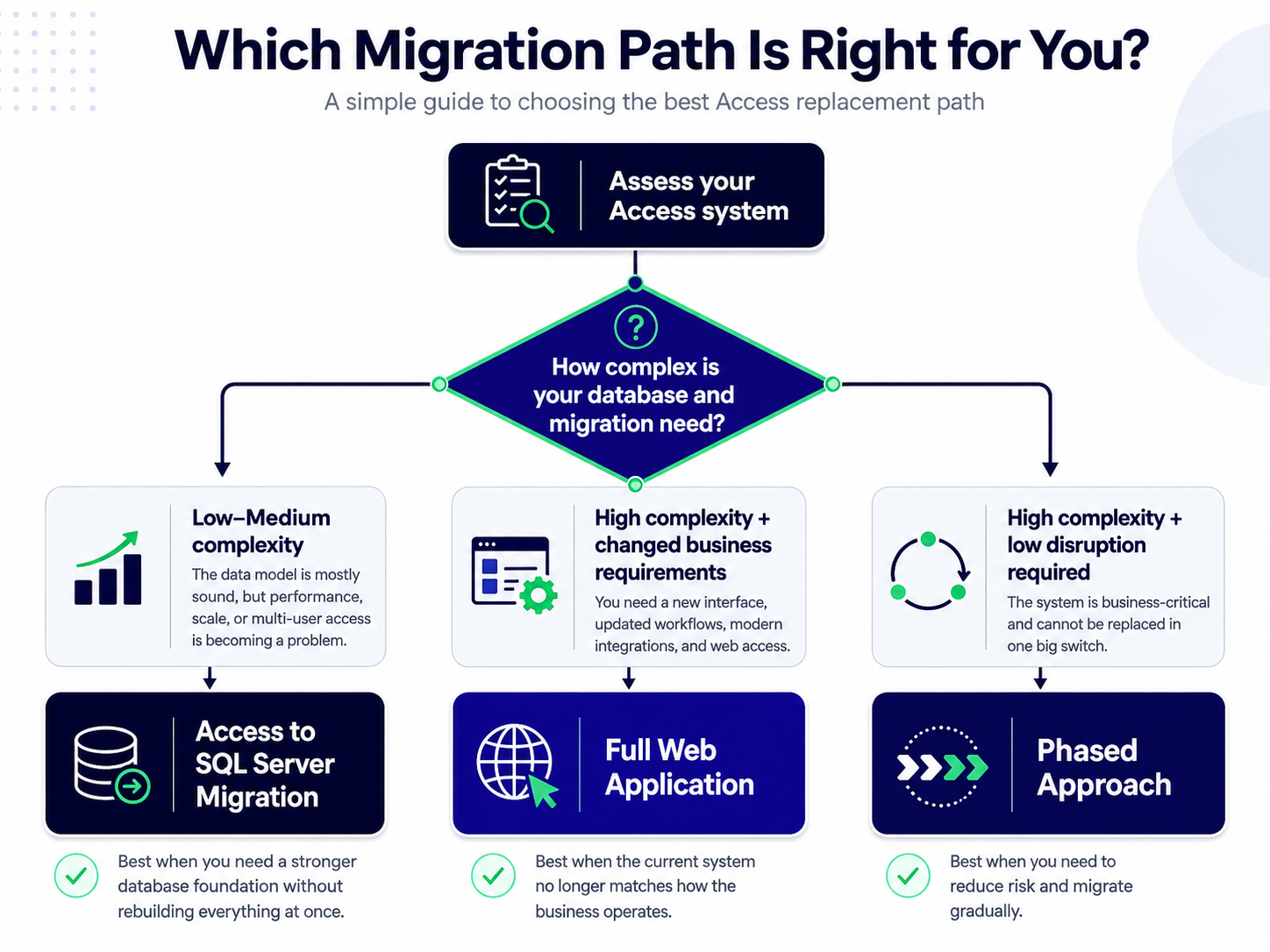
This is the decision that shapes everything else. There are three main paths for a Microsoft Access migration.
Access to SQL Server migration. Move the data from Access to SQL Server or PostgreSQL and rebuild or replace the front end separately. This is the right path when the data model is sound, but the Access interface is the main problem, or when the business needs the scalability and performance of a proper relational database without rebuilding everything at once.
Convert Access database to web application. Build a new system from scratch — new database, new interface, new integrations — and migrate the data into it. This suits Access systems where the business has changed significantly since the database was built, or where the existing structure is too problematic to build on. It is the most complete solution and the highest-investment option.
Phased approach. First, migrate the most important components; then, temporarily leave lower-priority functions in Access; and finally, finish the migration in phases. This reduces risk and disruption for complex systems. The UK Government's guidance on managing legacy technology recommends iterative and phased migration precisely because it is cheaper and simpler than full decommissioning in one go.
For a broader framework for thinking about this choice, see our guide to rewrite vs modernise.
| Access to SQL Server | Full Web Application | Phased Approach | |
|---|---|---|---|
| Best for | Sound data model, broken interface | Changed business requirements | Complex systems, risk-averse businesses |
| Timeline | Weeks to months | Months | Months to a year+ |
| Disruption | Medium | High at cutover | Low throughout |
| Cost | Lower | Higher | Spread over time |
| Risk | Medium | Higher | Lower |
Step 4: Plan the Data Migration
Data migration is where Access replacement projects most commonly run into problems, and where careful planning pays off most.
Start with data quality. Access databases accumulate inconsistencies over time — duplicate records, inconsistent formatting, and fields used for purposes they were not designed for. Make sure to clean the data before you migrate it, as migrating dirty data into a new system embeds the problem deeper.
Map every table and field in Access to its equivalent in the new system. Note where data types differ, where relationships need restructuring, and where normalisation is needed. Run a test migration and validate the results: check record counts, run the key reports against both systems, and verify that the data matches.
A practical example: an accounting firm migrating a client database from Access often finds that client names have been entered inconsistently over the years, with "Ltd", "Limited", "ltd." all used for the same entity type. Resolving that before migration prevents it from becoming a reporting problem in the new system.
Step 5: Build, Test, and Train
Run the old and new systems in parallel during this phase. The Access database stays live; the new system is built and tested alongside it. This creates dual maintenance, but it is far less risky than switching over before the new system has been properly validated.
User acceptance testing should involve the people who actually use the system, not just those who built it. Real users will find things that developers miss, particularly in edge cases and less common workflows.
Training matters more than most migration projects account for. Staff who have used Access for years have built habits around it, so the new system that does the same things differently still requires adjustment. Document the new system properly, provide hands-on training, and identify team members who can support colleagues in the first weeks after go-live.
Step 6: Go Live and Decommission Access
Choose a go-live date that minimises business risk — avoid end-of-month periods, peak operational times, or times when key staff are unavailable. Freeze data entry in Access at a defined point, run the final data migration into the new system, and switch over.
Plan a support period of two to four weeks where the project team is available to respond quickly to issues. Monitor closely in the first thirty days; specifically, watch for data discrepancies, performance issues, and user errors that indicate training gaps.
It's best to archive the Access file, so make sure not to delete it. Even after a successful migration, the original database is a useful reference point for the first several months.
Common Mistakes in Access Migration
Recreating Access exactly as it was. The temptation is to build a new system that looks and works like the old one, which misses the point. If the new system has the same structural problems as the old one, just in a different technology, you have spent money without solving the problem.
Underestimating the VBA logic. Access databases that have been used for five years or more usually have hundreds or thousands of lines of VBA code that store real business logic. This is made up of macros that check data, calculate values, make reports, and automate workflows. This logic needs to be understood, documented, and reconstructed in the new system. It is rarely as simple as it looks.
Not involving the people who use it. IT-led migrations that do not involve operational staff consistently miss requirements and produce systems that work technically but do not fit how the business actually operates.
Skipping data cleanup. Migrating poor-quality data into a new system does not improve it. Data cleanup before migration is not optional; it is part of the project.
Trying to do it all at once. A complex Access system cannot be replaced over a single weekend. Attempting to do so creates pressure that leads to shortcuts, and shortcuts in data migration create problems that take far longer to fix than the time saved.
When to Get Professional Help
Some Access replacements are straightforward. A simple database with a few tables, used by a small team, with no complex VBA and no integrations, can be scoped and delivered relatively quickly.
Others are not. If the database has been in active use for more than five years and no one has a comprehensive understanding of its capabilities, if it contains over thirty or forty tables, if it contains substantial VBA code that has not been fully mapped, if it integrates with other systems, or if it is subject to data handling compliance requirements, these are indicators that professional assistance is likely to save time and money, rather than adding cost.
The other signal is business criticality. The cost of a failed or postponed migration is high if the Access database is used for order management, inventory, client billing, or production scheduling, among other essential operational processes. The case for getting it right first time is stronger than the case for doing it cheaply.
Key Takeaways
- Access has genuine technical limits: 2GB file size, performance under concurrent load, no web or mobile access. Most businesses that have run on it for several years have encountered at least some of them.
- There is no single replacement; the right path depends on the complexity of the database, the business requirements, and the budget available.
- The six steps that matter: audit what you have, map what you need, choose your migration path, plan the data migration carefully, test with real users, and decommission with a proper cutover plan.
- The most common migration mistakes are avoidable: recreating Access rather than improving on it, underestimating VBA complexity, and skipping data cleanup.
- Complex, business-critical Access systems benefit from professional involvement; simpler ones can often be handled with less support.